Xcode users can free up space on your Mac
Win back gigabytes on your Mac by clearing the derived data, archives, device support files and caches Xcode leaves behind.
Updated for Xcode version 11.5 on Jun 10, 2020 (original post was for Xcode 5).
First of all, this post is strictly for the Apple developers using Xcode. If you’re not, there’s a lot of google pointers to reclaim space on your Mac. Or, try the Manage option in the storage section.
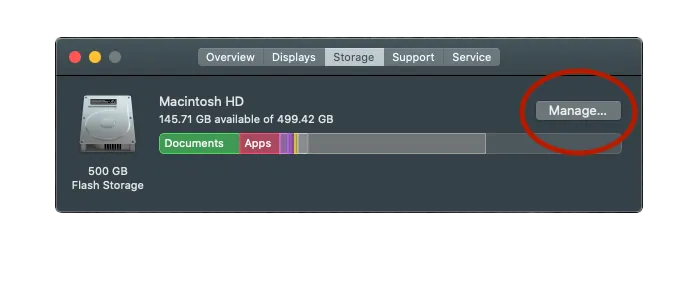
Apple developers, let’s start by taking a note of the remaining storage space inorder to find out how much space we manage to get back.
$ df -h /

Filesystem     Size   Used  Avail Capacity iused      ifree %iused  Mounted on
/dev/disk1s5  465Gi   10Gi  152Gi     7%  487827 4876641413    0%   /

# We are mainly interested in Xcode directory, you can try any directory path.
$ du -h -d 1 ~/Library/Developer/Xcode

 47M	Library/Developer/Xcode/iOS Device Logs
 11M	Library/Developer/Xcode/Products
  0B	Library/Developer/Xcode/DocumentationCache
9.7G	Library/Developer/Xcode/iOS DeviceSupport
 17G	Library/Developer/Xcode/Archives
416K	Library/Developer/Xcode/Templates
4.3G	Library/Developer/Xcode/watchOS DeviceSupport
1.3G	Library/Developer/Xcode/UserData
8.0K	Library/Developer/Xcode/DerivedData
 32G	Library/Developer/Xcode
Ready?
Here are some directory paths on your Mac allowing you to free up disk space by deleting its contents.
Derived data
~/Library/Developer/Xcode/DerivedData
The Derived Data folder here contains all of the intermediate build information, index and debug/release built targets for your projects. Generally, you will delete this data when you observe a peculiar behavior such as improper indexing or Xcode slowness.
Deleting all content (not derived data folder itself) from the derived data directory will make all your projects recreate when you rebuild; rebuilding will be a bit slower though.
Archives
~/Library/Developer/Xcode/Archives
All of your targets are stored in archived form in the Archives folder. Before you decide to delete the contents of this folder, here’s a warning that if you want to be able to debug deployed versions of your app, you shouldn’t delete the archives. Because you might need the debug symbol(.dSYM) file to re-symbolicate your crash reports.
DeviceSupport
~/Library/Developer/Xcode/iOS DeviceSupport
iOS Device Support folder creates a subfolder with the device version as identifier when you attach the device. It’s just old stuff most of the time. Keep the latest version and the rest of it can be deleted. If you don’t have an app running on iOS 9.1.1, there’s no reason to keep the 9.1.1 directory / directories.
If you still have a device running an older version, the directory will be re-created by Xcode when you attach the device. And, no, it has nothing to do with the simulator.
~/Library/Developer/Xcode/watchOS DeviceSupport
Same goes for watchOS Device. You can remove versions of the device that you no longer use. When you connect the device again, Xcode will reload the data.

Caution: You’ll want to be careful when removing files from within
/Libraryand/Users/<yourname>/Libraryas deleting the wrong files may cause applications and even the OS to misbehave.
CoreSimulator
~/Library/Developer/CoreSimulator
The Core Simulator folder is familiar to many Xcode users. It’s the territory of the simulator; that where it stores app data. It’s obvious that you can delete any older version of the simulator folder(s) if you no longer support your applications for those versions.
There’s a command to magically remove all the simulators that Xcode no longer requires.
xcrun simctl delete unavailableAnd it’s safer to use Reset Content and Settings from the menu to delete all of your app data from the simulators you’re currently using.
Below iOS 6: As we know, the location of the simulator has been moved from ~/Library/Application Support/iPhone Simulator since the Xcode 6. So, if you haven’t cleared this directory, check it out.
Caches
~/Library/Caches/com.apple.dt.Xcode
Caches are usually safe to delete because they will be recreated as necessary. This is a directory for the caches to Xcode. Delete away!
~/Library/Caches/org.carthage.CarthageKit
If you’ve used Carthage to handle dependency, consider checking the storage space it’s cache takes up.
MobileSync Backup
~/Library/Application Support/MobileSync/Backup
In addition, the Apple iOS device automatically syncs specific files and settings to your Mac every time they are connected to your Mac machine. To be on safer side, it’s wise to use Devices pane of iTunes preferences to delete older backups; you should keep your most recent backups off course.
That’s it!
GIF via GIPHY
Get xpunge
Checking every folder above by hand, on every Xcode release, gets old. xpunge does it in one command. It measures every category, cleans a safe default set only after you confirm, and goes through simctl for anything Apple manages, instead of deleting folders behind Xcode’s back. Archives and runtimes are removed only when you name them.
xpunge is in early development, so for now you build it from source (Swift 6, macOS 13 or later):
git clone https://github.com/ajithrnayak/xpunge.git
cd xpunge
swift build -c release
cp .build/release/xpunge /usr/local/bin/   # or anywhere on your PATH

xpunge scan             # what Xcode is using, largest first (read-only)
xpunge clean --dry-run  # exactly what a clean would remove
xpunge clean            # clean the safe default set, after confirmation
A Homebrew formula will follow the first release. Issues and ideas are welcome on GitHub.
Bonus: a prompt for your AI coding agent
Rather not install anything? Paste this into Claude Code, Codex, Cursor or any agent that can run commands on your Mac. It walks through the same steps as xpunge, measures first, and deletes nothing until you say yes. Read what it proposes before you agree: an agent improvising rm commands is exactly the risk xpunge exists to avoid.
Help me free up the disk space Xcode uses on my Mac. Work carefully:
delete nothing until I have seen the plan and said yes.

1. Check first
- Run `sw_vers`, `xcodebuild -version` and `df -h /`, and note the free space.
- If `xcode-select -p` points at the Command Line Tools, set DEVELOPER_DIR
  to the Xcode app for every `xcrun simctl` command.
- If Xcode or Simulator is running, stop and ask me to quit them.

2. Measure (read-only)
Run `du -sh` on each of these that exists and skip the rest:
- ~/Library/Developer/Xcode/DerivedData
- ~/Library/Caches/com.apple.dt.Xcode
- ~/Library/Caches/org.swift.swiftpm
- ~/Library/Caches/CocoaPods
- ~/Library/Caches/org.carthage.CarthageKit
- ~/Library/Developer/CoreSimulator/Caches
- ~/Library/Developer/Xcode/UserData/Previews
- ~/Library/Developer/Xcode/*DeviceSupport (iOS, watchOS, tvOS, visionOS)
- ~/Library/Developer/Xcode/Archives
Also run `xcrun simctl runtime list` and
`xcrun simctl list devices unavailable`.
Show one table, largest first: path, size, what it is, safe to delete?

3. Propose a plan in three groups
- Safe (rebuilt when needed): DerivedData, the caches above,
  unavailable simulators, unavailable Previews devices.
- Ask me item by item: simulator runtimes I no longer use, and
  DeviceSupport folders for OS versions I no longer debug on
  (keep the newest two).
- Never touch unless I name them: Archives (they hold the dSYMs
  needed to read crash reports), installed Xcode apps, device backups.

4. Clean, one group at a time, only after I say yes
- Simulators, Previews devices and runtimes go through simctl:
  `xcrun simctl delete unavailable`,
  `xcrun simctl --set previews delete unavailable`,
  `xcrun simctl runtime delete <identifier>`.
  Never `rm` anything inside CoreSimulator.
- For folders, print the exact paths, then remove them with `rm -rf`.
  No wildcards beyond those paths, no sudo, no moving to the Trash
  (that frees nothing until the Trash is emptied).

5. Finish
Run `df -h /` again and tell me how much space came back.
Tell me how much space you got back at hey@ajith.xyz. I’d also be happy to hear if you’ve got a tip to add to the mix.